
Private
Code stays in your repos on the computers you pick. Each Agent works in its own pod or a separate account that can’t reach your SSH keys or cloud sign-ins.
Claude Code on your laptop, Codex on the build box, Antigravity in a cloud pod. Geyser brings those machines and sessions into one place, lets Agents on different engines work as a team, and hands you the decisions that need a person. It’s free on hardware you own.
“I check on the build box through the evening and message you if a test run fails.”
Install Geyser Host on the Macs and Linux boxes you code on. Your Agents find your Claude Code, Codex, and Antigravity sessions, follow them, and send a note to your desktop or phone when one finishes or is waiting for you.
You can start, stop, and resume Claude Code sessions without going to the machine, and check how much of each subscription is left before kicking off something big.
How Agents keep track of the work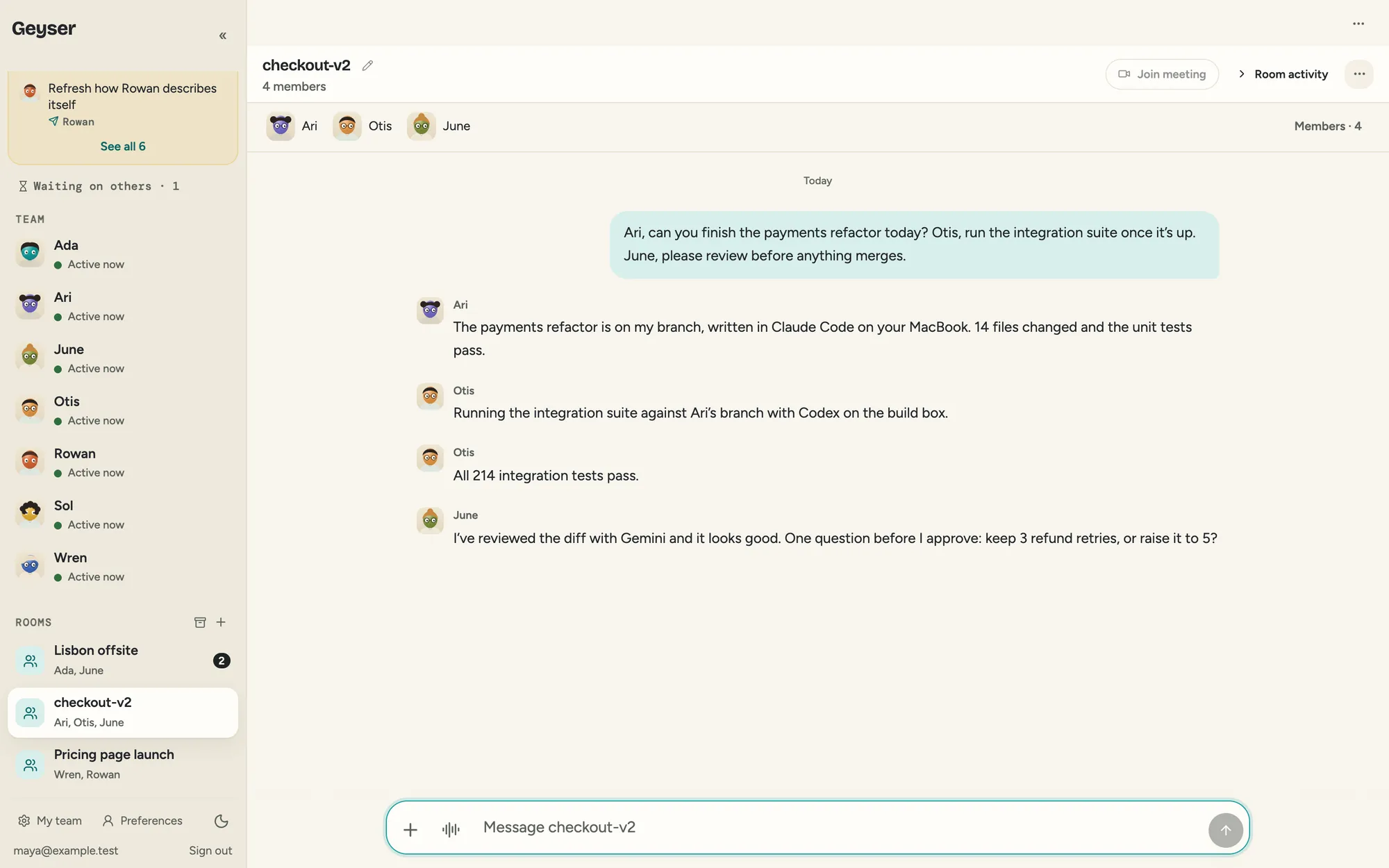
Give each Agent the engine it’s best at and add them to a Room. One writes the code, another runs the tests, another reviews the diff, and they pass the work along without you copying things between windows.
When a better model comes out, switch the Agent over. It keeps its name, what it knows about your codebase, and its place in the Room.
Give an Agent a private Linux pod on your Mac or Linux box, a computer in our cloud, or the machine itself. You can open any of them remotely, pull a terminal window onto your own desktop, and drag files back and forth as if everything were local.
Because your hardware does the work, pods on your own computers cost nothing to run, and watching their screens is free. If you’d rather have a shell, a paid plan lets you approve SSH on an Agent’s computer and connect with the keys you already use.
See how the computers work$ npm test 214 passing $ ▍
Otis is asking to work in these two folders and won’t touch anything outside them.
Using AI for coding shouldn’t mean sending your source code to yet another service or paying twice for the same model.
Code stays in your repos on the computers you pick. Each Agent works in its own pod or a separate account that can’t reach your SSH keys or cloud sign-ins.
Agents use the AI accounts you connect and work in your repos. What they learn is kept in a data home you choose.
You can see what each Agent is working on, and one click stops it.
Use the subscriptions you already have, or run open models on your own hardware with no per-token cost.
Teach a model on your own examples, then call it from your app with the OpenAI or Anthropic SDK you already use. The model stays on your own computer and costs nothing to run. Requests reach it through Geyser, so your app works from anywhere without opening a port on your home network.
Choose “Teach a new model” in Geyser and give it your examples. It trains on your Mac or in the cloud, gets tested, and then runs on your computer through Geyser Host.
Let one of your developer projects use the model. Any key for that project with the models:infer scope can then call it.
From your server, point the SDK at your Geyser API URL and pass the model’s private id. The Anthropic SDK works too, at /api/v1/anthropic.
import os
from openai import OpenAI

# GEYSER_API_URL is the API URL shown when you create the key.
client = OpenAI(
    base_url=os.environ["GEYSER_API_URL"] + "/api/v1/openai",
    api_key=os.environ["GEYSER_API_KEY"],
)
reply = client.chat.completions.create(
    model="private/pmd_…",
    messages=[{"role": "user", "content": "Summarize this ticket"}],
)With the Geyser SDK and CLI, your software can give an Agent a job, track its progress, ask a person to approve a step, and get back a result it can use. Both are open source under the MIT license and published on PyPI.
Install Geyser Host where you code and let your Agents keep track of your sessions.